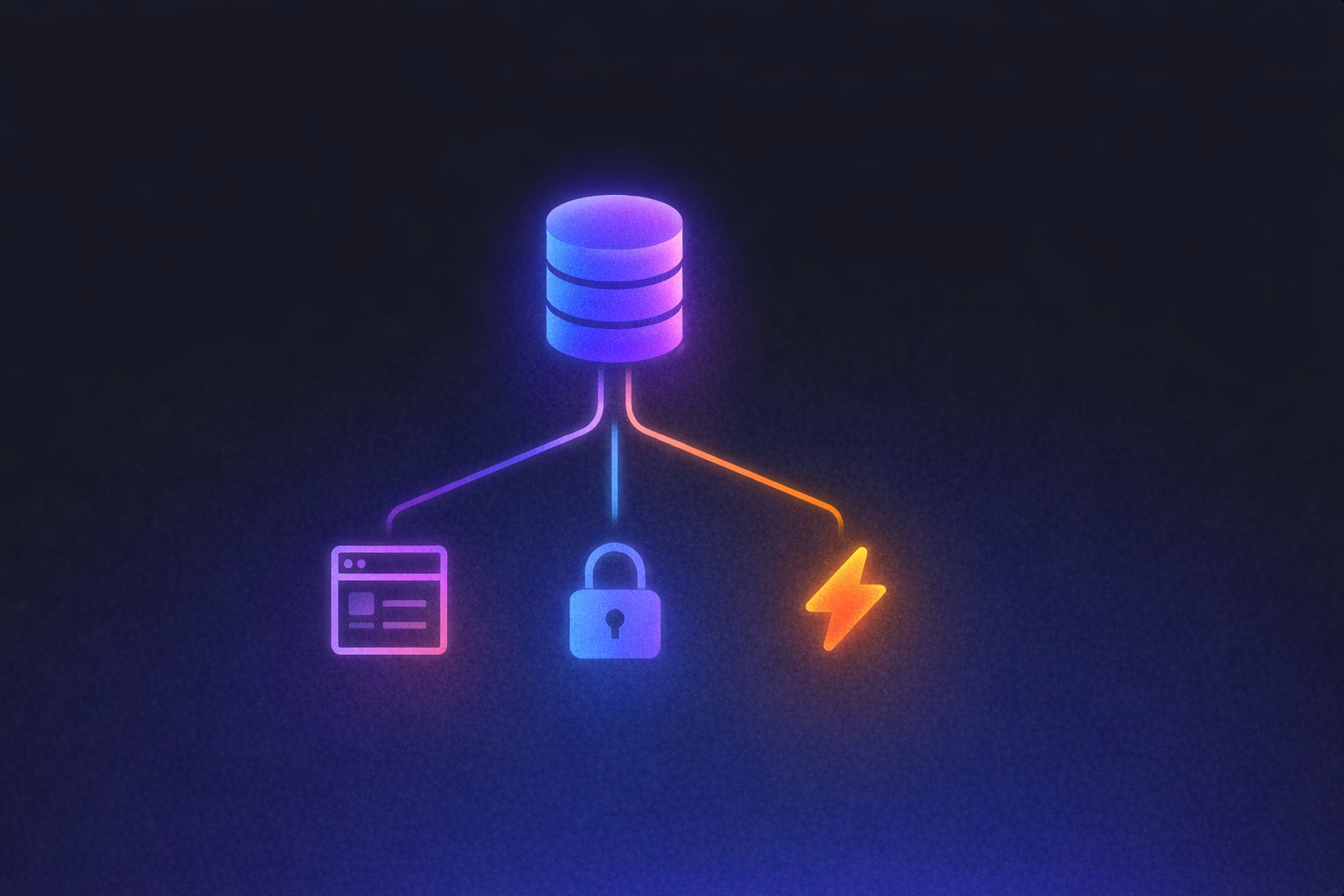
Building a weather web application touches more pieces than most tutorials acknowledge. You need an API that returns the right data at the right price. You need a UI that handles city search, displays conditions clearly, and works on mobile. You need a way to make API calls securely so your key stays private. And you need deployment, a live URL someone can actually visit. This guide covers every step, whether you write code yourself or describe what you want and let an AI builder handle the rest.
Choose the Right Weather API for Your App
The right API sets the ceiling on what your first weather web application can do. The API you pick determines what data your web application can show, how many users it can serve for free, and how quickly you hit a paywall. Three free-tier options stand out for first-time builders, each with a different sweet spot.
- OpenWeatherMap: A widely referenced weather API in tutorials and documentation. The free tier includes current weather and forecast data, with additional higher-tier options for richer datasets. Best for builders who want broad community support and lots of tutorial coverage.
- WeatherAPI: A beginner-friendly option with a free plan and a range of weather data types, including current conditions and forecast information. Best for builders who want room to grow without worrying too early about rate limits during development and early launch.
- Tomorrow.io: A more data-rich option per request, with fields such as temperature, humidity, wind, UV index, and precipitation probability. Best for builders who need detailed meteorological data and can work within stricter free-tier limits.
For a first weather web application, WeatherAPI hits a strong balance: straightforward documentation and enough data types to build something genuinely useful without upgrading immediately.
Plan Your App Before You Build It
A tight v1 scope gets your weather web application shipped faster. A working first version needs exactly three things: a city search input, a live weather display showing temperature and conditions, and a layout that looks good on a phone screen. That's it. Everything else is a future iteration.
What Goes in Version One
Your v1 should let someone type a city name, hit search, and see current temperature, a weather description (sunny, cloudy, rain), and two or three supporting details like humidity and wind speed. A clean card layout with a search bar at the top handles this well. If you're using WeatherAPI's free tier, you can also show a 3-day forecast below the current conditions. OpenWeatherMap's standard free tier extends that to a 5-day forecast, and both can support a stronger first version without extra product complexity.
What to Defer
Geolocation, auto-detecting the user's city, multi-day hourly breakdowns, animated weather maps, user accounts, and saved locations all belong in v2 or later. Each of these adds complexity: geolocation requires browser permissions and a fallback for when users decline, hourly breakdowns multiply your API calls, and user accounts need a full backend. Scoping tightly for v1 means you ship something real this week instead of abandoning something ambitious next month.
The goal is a working tool someone can bookmark and keep using. Ship the simple version, then improve it based on what you actually use.
Build the App with Lovable
If you want to move from plan to working product quickly, this is where you build. With Lovable, an AI-powered no-code builder, you can describe the web application you want in plain English and get a working, deployed full-stack application back, a workflow sometimes called vibe coding.
Writing Your First Prompt
A clear prompt gives you a better first version right away. A good starting prompt for a weather web application looks something like this: "Build a weather app where users can search by city and see the current temperature, conditions, humidity, and wind speed. Include a 3-day forecast below the current weather. Use a clean card-based layout that works on mobile."
Lovable gives you two modes to work with as you build. Agent Mode: Autonomous AI development with independent codebase exploration, proactive debugging, real-time web search, and automated problem-solving. Chat Mode: Interactive collaborative interface for planning, debugging, and iterative development with multi-step reasoning capabilities. With that setup, you get the full web application generated for you. You get the search interface, the API call wiring, the weather display, error states such as an invalid city name, and a responsive layout. You can watch it work in real time and queue additional prompts while it builds.
How API Key Security Works
Keeping your API key server-side protects your quota and keeps your client code clean. Weather APIs require a secret key, and exposing that key in your public code means anyone can steal it and burn through your quota. If you paste an API key into the chat, we automatically detect it and guide you to store it securely in encrypted Secrets. We then create a server-side Edge Function that makes the API call on your behalf. Your web application calls the Edge Function, and your key never appears in client-side code. No manual configuration required.
Polishing the Interface
Once the core weather flow works, you can refine the UI without slowing down. Once your working web application is generated, Visual Edits: Direct UI manipulation that lets you click and modify interface elements in real-time without writing prompts. It handles the polish. Click a heading to change the text. Adjust colors, spacing, and padding by selecting elements directly. Swap images. These changes take effect immediately, so you can fine-tune the look of your weather cards, adjust font sizes for readability, or change your color scheme without re-prompting the AI.
What a Finished V1 Looks Like
Your first version can already be useful in the real world. A property manager building a weather widget for their listings page, a solopreneur adding local forecasts to their travel blog, or a landscaping company embedding conditions on their scheduling page can each end up with a deployed web application with city search, live weather data, a multi-day forecast, and a responsive layout. With Lovable, you get the fetch logic, error states, responsive CSS, and API key management handled automatically. If you want a head start, Lovable's templates give you a production-ready foundation you can customize with Visual Edits.
For technical builders, this path also keeps the code useful beyond a demo. We cover GitHub and backend setup later on, and the workflow here is meant to get you to a working full-stack application fast without trapping you in a throwaway prototype.
Connect a Backend to Store User Data
A backend turns a simple weather web application into something people can return to. Connecting Supabase gives your weather web application memory across sessions and devices.
What a Backend Unlocks
With Supabase connected, your web application can save a user's home city so they never have to search for it again. It can store a favorites list, home, office, vacation destination, and load all three on login. It can keep a search history so users can revisit cities they checked last week. And it can support user accounts, so each person's preferences are tied to their identity and persist across devices.
How to Set It Up
The setup is short, and it unlocks saved data fast. The connection process takes a few minutes. Create a free Supabase account, start a new project, then connect it through Supabase integration. Once linked, you describe what you want in plain English: "Save each user's search history to their profile" or "Let users mark cities as favorites." We propose the database structure, give you a single SQL snippet to paste into Supabase's editor, and wire the UI to the data automatically.
Adding user login is equally direct. Type "Add login" and you get a complete signup and login flow wired to Supabase authentication. Social logins like Google require enabling the provider in Supabase's dashboard and prompting Lovable to add the button.
For builders who want zero manual database setup, Lovable Cloud gives you a production-ready backend powered by Supabase infrastructure without requiring a separate account or any SQL steps at all.
Where to Take Your Weather App Next
Once your core weather web application works, the next step is specializing it for a real workflow. A city search tool with saved locations is a strong foundation. Here are five directions that turn it into something more specialized:
- Travel itinerary planner: Pull forecasts for each destination on a trip's dates, helping travelers pack appropriately and plan outdoor activities.
- Agriculture or outdoor events widget: Surface hyperlocal conditions such as frost alerts, precipitation probability, and wind thresholds that trigger specific operational decisions for farms, vineyards, or outdoor venues.
- Local business tool: Landscapers, roofing contractors, and outdoor wedding venues can embed live weather on their websites to reduce weather-related calls and set client expectations automatically.
- Weather alert system: Connect to a notification service like Resend to fire email alerts when severe weather hits a user's saved locations, useful for construction sites, summer camps, or event organizers.
- Multi-city comparison dashboard: Display conditions across all locations simultaneously for regional event companies, logistics dispatchers, or property management firms overseeing multiple sites.
Each of these builds on the same foundation you shipped in v1, extending it toward a specific use case without requiring a rebuild from scratch.
Publish and Keep Iterating
Shipping to a live URL is the part most tutorials skip, but it's also where the project becomes real. Shipping your weather web application to a live URL takes one click. Hit Publish in Lovable's editor, choose your URL name (defaults to yourname.lovable.app), and your site is live with automatic SSL and global delivery.
Custom Domain and Version Control
A custom domain and version history make your project feel production-ready. To put your web application on your own domain, you can either buy a domain directly inside Lovable or connect a custom domain by adding two DNS records, an A record and a TXT record, that Lovable provides. SSL certificates are provisioned automatically.
For version control, connect your GitHub account through Lovable's settings. Every edit you make is automatically saved as a commit, giving you timestamped backups you can roll back to if a future change breaks something. Pin a version after each working feature to create an explicit restore point.
Updating After Launch
Updating after launch should feel as simple as building the first version. The post-launch workflow mirrors the build process. Make changes via chat prompts or Visual Edits, and when you're ready, click Publish → Update to push the new version live. You don't need to re-prompt from scratch to change a color, swap a layout, or adjust spacing. Visual Edits handles most UI changes in real time. The web application keeps improving without the build-from-zero feeling that kills momentum on side projects.
Build Your First Weather App Today
You can turn weather data into a real tool in a single afternoon instead of losing a weekend to boilerplate and API debugging. Weather data becomes genuinely useful when it lives inside a tool that fits your actual workflow and keeps earning repeat use. Now that you know how to build a weather app from API selection through deployment, you can turn it into a custom weather dashboard for your service area, a travel planner that pulls forecasts for your clients' destinations, or an outdoor events tool that triggers alerts when conditions change. With Lovable, you can Get started much faster than spending a weekend on boilerplate, API debugging, and deployment setup. You get to a working full-stack application sooner and shape it around the exact workflow you need. That means fewer key-management headaches, fewer dead-end tutorial steps, and a project people can actually use by the end of the day.
FAQ
What Is the Easiest Way to Build a Weather App?
The easiest path is to start with a simple weather web application: city search, current conditions, and a mobile-friendly layout. If you use Lovable, you can describe that setup in plain English and generate a working full-stack application without wiring every piece manually.
Which Weather API Is Best for Beginners?
Based on the options covered here, WeatherAPI is a strong starting point because it is straightforward to work with and supports a useful first version. OpenWeatherMap is also a common choice if you want broad tutorial coverage.
Do I Need a Backend for a Weather App?
A backend becomes useful once you want saved cities, accounts, search history, or alerts tied to a user. A basic weather web application can fetch and display live data without storing anything, so many first versions can stay simple.
How Do I Keep My Weather API Key Secure?
Do not place the key directly in client-side code. A safer setup is to store it in encrypted secrets and call the weather provider from a server-side function, so the browser never sees the key.
Can Developers Still Customize the Result?
Yes. This workflow is useful if you want speed without giving up control. The guide includes GitHub and Supabase setup so you can extend the generated web application, integrate services, and keep iterating after the first version is live.