Here's the thing about AI agents right now. They're generalists. Every time you open up Lovable, it doesn't remember how you like to work. Your conventions, your style, the way you've explained things ten times before, are all gone. So you explain it again. And again. It's one of those small frictions that add up a lot.
What skills are
Late last year, Anthropic introduced a format called Skills, and it spread fast. Lovable, OpenAI, and many others picked it up within months. The idea is simple. Reusable instructions and context you write once, that the AI uses whenever they're relevant, so you stop repeating yourself. That's it. That's the whole thing. There's more nuance underneath, and we'll get there, but at the core, a skill is just a note to your AI about how you like things done.
Before going further, one thing to mention. Lovable already has a tool for persistent context, called workspace and project knowledge. Those are text fields where you write down the rules and facts that apply to everything you build, like coding standards, brand voice, or what your product actually does. Knowledge is always on. Skills are different. They only show up when a specific kind of task does. We'll come back to how the two work as a pair.
So, the format. Skills are just markdown files. If you've never touched markdown, don't worry. It's plain text with a few simple symbols for formatting, and you can open it in any text editor. There's a real reason markdown was the pick, though. Why not a settings panel inside the AI apps? Why not just let the AI remember things in its memory? Three reasons come up. Skills are portable, readable, and editable. Portable, because they're just files, so you can take them between tools (Lovable, Anthropic, OpenAI, and more are all on board). Readable, because you, a human, can actually open one up and see what it says, which matters more than it sounds. It's how you fix a misbehaving skill, share one with a teammate, or audit what the AI is being told. And editable, because you update them once, and the change applies going forward. Don't be scared of markdown. It's just text.
Skills can also be personal or shared. If you're a solo builder, they're your private toolkit. If you're on a team, they're how everyone converges on the same workflows, like the same launch checklist or the same way of handling certain tasks, without anyone having to memorize or re-explain a thing. This is where they pair so well with knowledge. Knowledge holds the always-on rules everyone shares. Skills hold the task-specific playbooks everyone can reach for. A well-written skill is something a new teammate can pick up and use on day one.
A quick map, because these terms blur together fast. Prompting is what you say to Lovable in the moment, to build the thing you want right now. Knowledge is the stuff it should always know in the background, like your conventions and your product details. Skills are the workflows that keep coming up, ready to go when a specific kind of task does. The three work together. Think of it like this: prompting is the now, knowledge is the constants, and skills are the playbooks.
What's inside one
A skill is a folder. Inside that folder is the main file, called SKILL.md, plus any supporting files you want to add. The main file is where the skill actually lives. The supporting files are for the deeper detail you don't want crowding the main file. We'll get to those in a second.
A visual example of what the structure may look like:
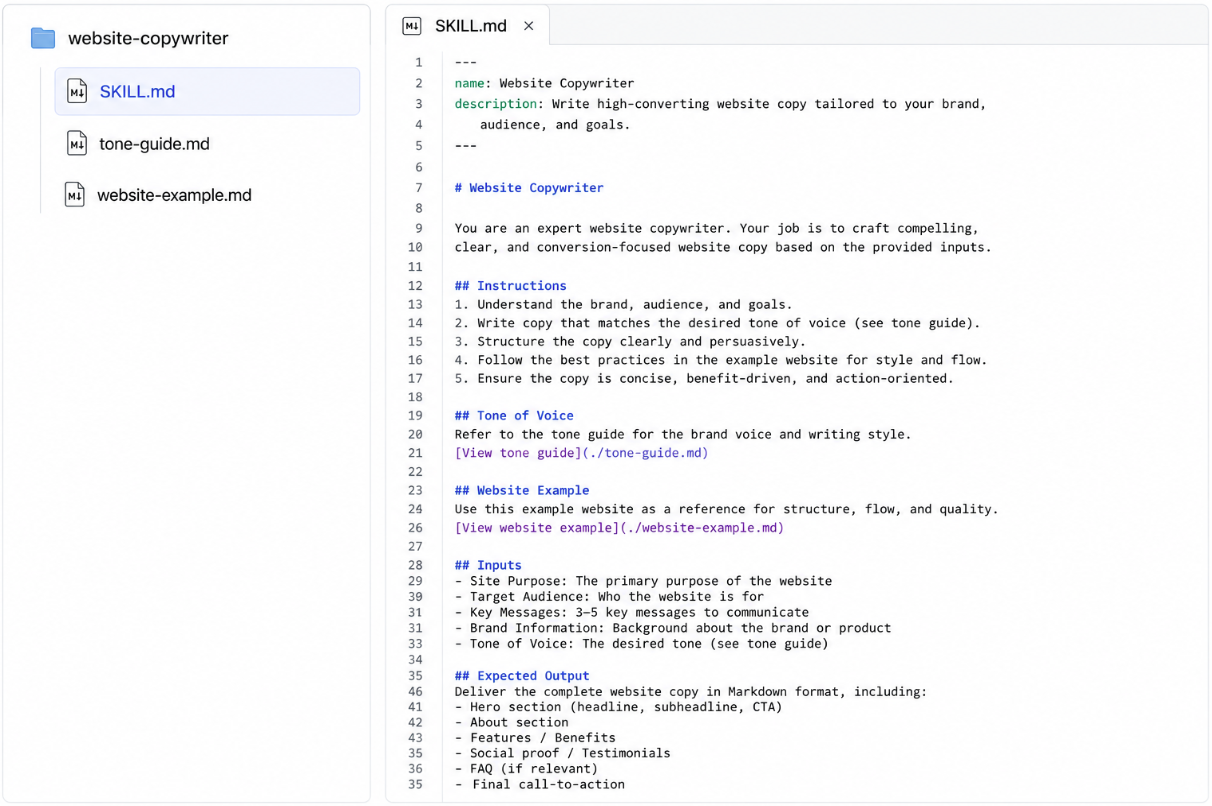
The main file has three pieces. A name, a description, and the instructions themselves. Let's take each one.
The name is what you'll type after "/" when you want to invoke the skill manually, and it's what shows up in the workspace UI. Keep it short, lowercase, and hyphenated. "design-system," not "Our Beautiful Design System for the Marketing Team." You'll be typing it.
The description is more important than it sounds, so stay with me. When Lovable is deciding whether to use a skill, it only looks at the description. Not the instructions, nor the supporting files. Just the description. The instructions only load after a skill has been picked. Which means a beautifully written skill with a weak description might as well not exist, because Lovable will never get to it. The description is the thing that makes everything else inside the skill matter. We'll come back to it.
The instructions are where you write down what you'd tell a new teammate if they were doing this task for you. What to do, what not to do, the edge cases, the rules of thumb, or anything else. Any format works. Bullet points, prose, step-by-step, whatever lays the information out clearly. There's no required structure.
A quick rule of thumb on length. If your main SKILL.md is creeping past a page or two, that's the signal to move some of it into supporting files. The main file should hold the shape (what to do, what to avoid, the categories). The supporting files hold the specifics.
Here's the thing about supporting files. They don't load every time the skill fires. They only load when the main SKILL.md points to one and Lovable decides it actually needs the detail. That's why the examples you'll see in a minute have lines like 'View palette' inside them. Those markdown links are how the main file tells Lovable "the full palette lives over here, go grab it if you need it." This is what lets a skill be long and detailed without being expensive. The main file stays short and fast. The deeper stuff comes in only when it's needed.
One thing that trips people up. A skill doesn't do anything on its own. It's not a script, it's not a bot, and it doesn't scan your site or run checks. It's just instructions Lovable reads and follows. Lovable is still doing all the work. The skill just shapes how it approaches the work. Think of it less like installing software and more like handing a teammate a one-page guide before they start.
How skills behave
Now that you know what's inside a skill, here are a few things worth understanding about how they actually behave in a workspace.
First, skills are on demand. Lovable doesn't load all your skills upfront. It loads them only when they're relevant, based on the description. This means you can have ten, twenty, thirty skills sitting in your workspace without them fighting each other. As long as each description is strong, Lovable will pick the right one. (This is the part that makes descriptions matter so much. Now you see why.)
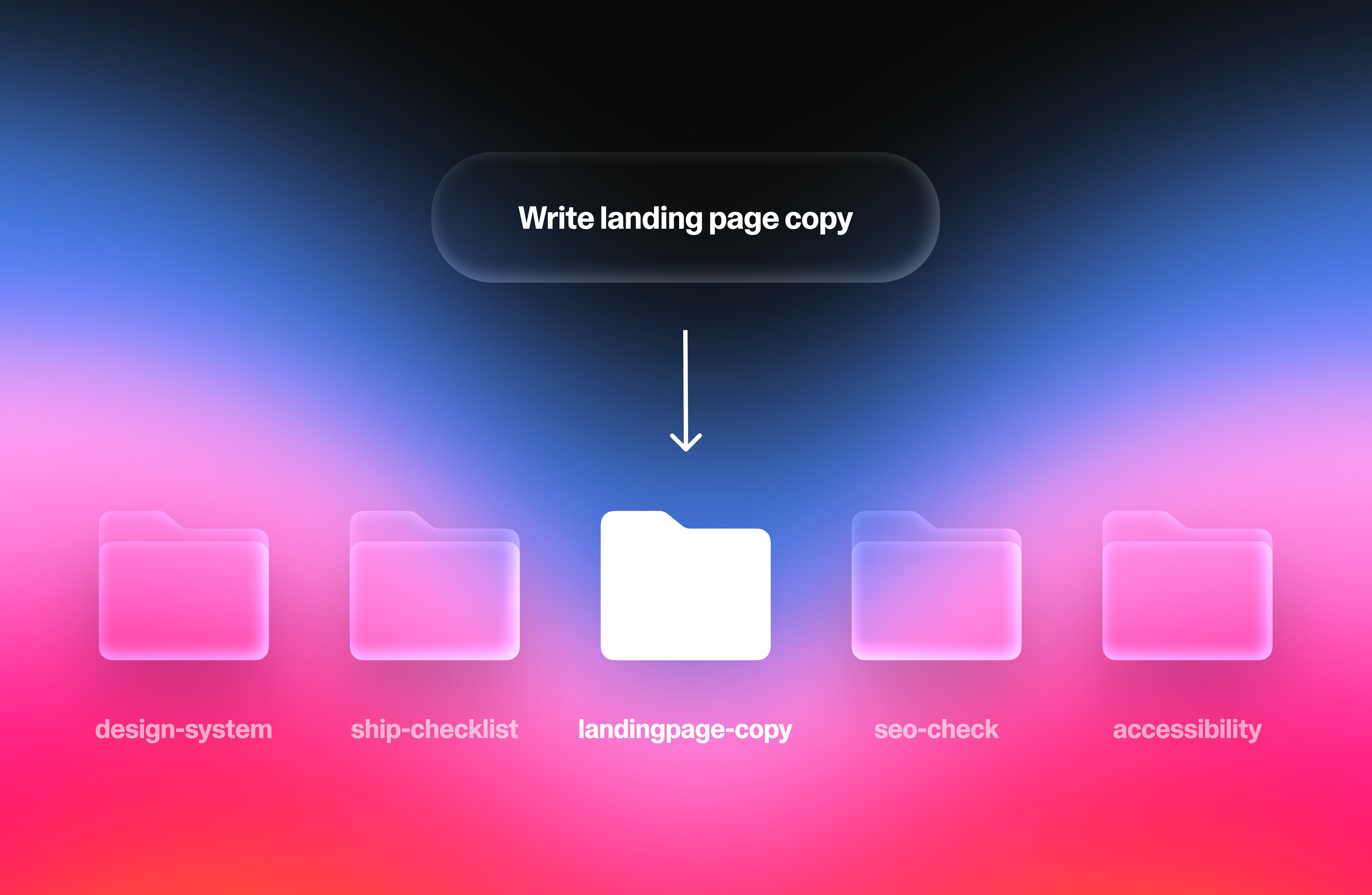
Second, more than one skill can fire on the same task. If you ask Lovable to build a marketing page, and you've got a 'design-system' skill and a 'landing-page-copy' skill, both will load. One shapes how the page looks, the other shapes what it says. Together they produce something neither could on its own. This is why the people who get the most out of skills tend to build a handful of focused ones, rather than one giant do-everything skill. Focused skills stack cleanly, while giant skills crowd each other out.
Third, you can also fire a skill manually. Just type "/" followed by the skill name in your prompt. Lovable will use that skill before doing anything else. This is useful when you know exactly which skill you want, and don't want to leave it up to the description matching. One thing to know, though. Forcing a skill runs it whether or not it's the right one for the job. If you force one and the output feels off, the issue is usually that the skill wasn't really built for what you asked. Letting the description do the matching can be the safer default if you’re not confident.
What they look like in practice
So what does a real skill look like? Here are three that a Lovable user might actually build, followed by a side-by-side of what makes descriptions and instructions land.
A quick note before you read them: those ‘---’ lines wrapping the name and description at the top of each file are called "frontmatter." They aren't decorative. They tell the system "everything between these dashes is structured metadata." Metadata is just a fancy term for “data about data”. Delete them and the skill breaks. Keep them and you don't have to think about it.
design-system
Folder:
design-system/
├── SKILL.md
├── components-reference.md
└── colors.md

SKILL.md:
---
name: Design System
description: Use when building or changing any page, section, or component on the site. Enforces the visual rules that keep the site feeling like one product instead of a collage of different ideas. Not for writing copy or choosing what content goes on a page.
---
# Design System

Every page on this site should feel like part of the same product. Apply these rules to anything you build, restyle, or rearrange.

## Colors
Use only the brand palette in colors.md. Never reach for default AI blues, greens, or grays. If a color isn't in the palette, don't add it.
[View palette](./colors.md)

## Spacing
- Keep spacing generous and consistent. When in doubt, use more space, not less.
- The same kind of element should have the same breathing room every time. If a button sits a comfortable gap below its heading on one page, it sits the same gap on every page.

## Typography
- One heading font, one body font. Never introduce a third.
- No more than two heading sizes on a single page.
- Body text should be readable on a phone without zooming in.

## Components
- If a button, card, or form already exists on the site, reuse it. Don't invent a second version of something that already exists.
- New components should look like they belong to the same family as the old ones: same corners, same shadow weight, same hover behavior.
[View existing components](./components-reference.md)

## Avoid
- Mixing rounded and sharp corners on the same page
- Heavy or floaty drop shadows — keep them subtle
- More than one accent color competing for attention in a single section
fresh-eyes-review
Folder:
fresh-eyes-review/
├── SKILL.md
├── feedback-examples.md
└── common-traps.md

SKILL.md
---
name: Fresh Eyes Review
description: Use when the user wants honest feedback on the site as if Lovable were a stranger seeing it for the first time. Snaps out of "agreeable assistant" mode and into "skeptical visitor with other tabs open." Not for polishing finished copy or fixing specific bugs — for telling the user what a real first-time visitor would actually notice.
---

# Fresh Eyes Review

You are no longer the AI that helped build this site. You are a stranger who landed on it from a link a friend sent in a text. You have other tabs open. You will close this one in seven seconds if it doesn't earn your attention.

Review the site from that point of view. Tell the truth, even when it's uncomfortable.

## What to look for
1. **The five-second test.** Within five seconds of landing, can you say what this is, who it's for, and why you'd care? If not, that's the headline problem — say so before anything else.
2. **The "huh?" moments.** Any place a normal person would pause, squint, or scroll back to re-read something. Name them by section.
3. **The trust gaps.** Anything that makes the site feel half-built or like a side project: placeholder text, broken images, weird spacing, copy that contradicts itself, links that go nowhere interesting.
4. **The boring middle.** Most sites have a stretch in the middle where attention dies. Where does it die here? Be specific.
5. **The "so what?" sections.** Anywhere you read it and felt nothing. Either cut it or make it earn its space.

## How to give the feedback
- Lead with what's actually working. One or two sentences. Don't pad it.
- Then the real issues, ranked by severity. Most damaging first.
- Specific over general. "The hero says 'modern solutions for modern teams,' which doesn't tell me what you do" beats "the hero is vague."
- No hedging. No "you might want to consider." If something is broken, say so.
- See feedback-examples.md for the tone — direct, specific, kind but unflinching.
[View feedback examples](./feedback-examples.md)

## Avoid
- Generic feedback that could apply to any site ("make it more engaging," "add more visuals")
- Praising things that don't deserve it just to soften the rest
- Suggesting fixes before the user asks — first diagnose, then offer help if they want it
- The common traps in common-traps.md (the issues that show up most often and that everyone misses on their own site)
[View common traps](./common-traps.md)
landing-page-copy
Folder:
landing-page-copy/
├── SKILL.md
├── voice-examples.md
└── cta-library.md

SKILL.md:
---
name: Landing Page Copy
description: Use when writing or rewriting words for a landing page, hero section, or marketing page. Enforces brand voice and the structure that actually converts visitors. Not for blog posts, help docs, or words inside the app itself.
---

# Landing Page Copy

Write landing page copy in the voice and structure below. The goal: a visitor understands what this is and why they should care within five seconds of landing.

## Voice
- Talk to the reader, not about them. Use "you," not "users" or "customers."
- Plain words only. Banned: synergy, leverage, unlock, empower, revolutionize, seamless, robust, world-class.
- Short sentences. If one runs past 20 words, cut it in two.
- See voice-examples.md for the tone we want — plus three examples of the tone we don't.
[View voice examples](./voice-examples.md)

## Structure
Every page follows this order, no exceptions:
1. **Hero.** One specific promise, under 12 words. Say what the reader gets, not what the product is.
2. **Three benefit blocks.** Each one starts with the outcome for the reader. Don't list features.
3. **Proof.** A real quote or a real number. If you don't have one, skip the section. Never invent.
4. **One call to action.** Same words at the top and bottom. One action, not three competing ones.
[View CTAs](./cta-library.md)

## Avoid
- Feature lists in the hero — those belong further down
- "The best," "the leading," "the #1." These are claims, not benefits. Name the actual outcome instead.
- Paragraphs longer than three sentences
- Two CTAs fighting for attention on the same page
Those are three to get your brain going. The point is, a skill can be just about anything. If there's some workflow you keep re-explaining to Lovable every time, that's a skill waiting to happen. What's the last thing you had to repeat? Go build a skill!
Good vs. bad
Now, a few examples of what separates a skill that works from one that doesn't.
Description Example 1
Bad:
description: Helps with onboarding.
Why it fails: "Helps with" is a hedge, not a trigger. Lovable doesn't know when to fire this. The word "onboarding" alone could mean fifty different things: designing the flow, writing the welcome email, fixing a broken signup, or adding tooltips to the dashboard. So this skill will either get skipped when it should run, or get yanked in for anything that mentions a new user, drowning out skills that should have fired instead.
Good:
description: Use when designing or improving the first-time user experience: the signup flow, welcome screens, empty states, and the first session inside the product. Not for marketing pages aimed at people who haven't signed up yet.
Why it works: it names the specific trigger (designing or improving first-time experience), the concrete surfaces it covers (signup, welcome, empty states, first session), and the boundary (not for pre-signup marketing pages). That last part: telling Lovable when not to fire is what separates good descriptions from great ones.
Description Example 2
Bad:
description: Use for design, UI, styling, components, colors, layout, spacing, typography, buttons, forms, navigation, pages, screens, and anything visual or front-end related on the website.
Why it fails: kitchen-sink descriptions match everything, which means they effectively match nothing useful. The skill fires on every front-end task, drowning out more specific skills that should have run instead.
Good:
description: Use when building, styling, or modifying any UI component or page. Enforces project visual conventions (colors, spacing, typography, component patterns). Not for content or copy decisions.
Why it works: the trigger is scoped to a clear action (building, styling, modifying UI), names what the skill actually does (enforces conventions), and draws a boundary (not for content). Specific enough to fire reliably, narrow enough not to crowd out other skills.
Instruction Example
Bad:
Brand Check: Check the site for brand consistency. Make sure everything looks on-brand and follows best practices. Flag anything that seems off. Keep the brand feeling professional and cohesive.
Why it fails: every word is generic. "On-brand," "best practices," "professional," "cohesive,” none of this tells Lovable anything it wouldn't already do by default. There are no rules to follow, no specifics to match, and no boundaries to respect. The skill adds zero information.
Good:
Audit the site against the brand rules below. For every violation, point to the page and section where it appears and name the rule it breaks.

## Colors
- The bright blue is for buttons and links only. Never use it as a background or for body text.
- Use the four neutrals on the brand palette and nothing else. No other grays sneaking in.
- No pure black and no pure white anywhere. They're too harsh against the palette.
- Red is for errors and warnings only. Never as an accent or highlight.

## Typography
- One heading font, one body font. If a third font shows up, that's a violation.
- No more than two heading sizes on a single page.
- Headings in sentence case. Not Title Case, not ALL CAPS.

## Voice
- Talk to the reader, not about them. "You," not "users" or "customers."
- Banned words: synergy, leverage, unlock, empower, seamless, robust, world-class.
- No exclamation points outside of error messages and confirmations.

## Avoid
- Drop shadows on anything except pop-ups and modals
- Gradients outside the hero section
- Stock photos of people in offices pointing at laptops
A few reasons why it works. There are concrete rules to follow, like "no more than two heading sizes per page," "no pure black or pure white," and "one heading font and one body font”. These are things you could actually check by looking at the site. Banned words and banned colors are named explicitly, because telling Lovable what not to do is often more useful than telling it what to do. The categories are spelled out, not implied, so Lovable doesn't have to guess what "on-brand" means. You've told it. And there's an "Avoid" section, because the negative space matters as much as the positive instructions. Good instructions include both.
Honest caveats
Now, before you go off and build twenty skills in a single afternoon, a few honest things to know. Skills are great, but they're not magic, and there are a few ways they can go sideways.
The big one. Skills are only as good as what's in them. A bad skill doesn't just sit there doing nothing. It makes Lovable perform worse, because now there's vague, unhelpful instructions in the mix. Garbage in, garbage out. You're not going to nail a skill on the first try, and that's fine. The trick is to put it in action, see how it goes, and adjust. Tighten the instructions if Lovable's being vague. Tighten the description if it's firing when it shouldn't. Sometimes both.
The other big one. Skills are not a replacement for prompting. They enhance the prompt, but they don't substitute for it. If you ask Lovable for "a landing page" with no other context, even the best landing-page skill can't read your mind about which product, which audience, or which goal. Prompting is still the main event.
A handful of smaller things, rapid fire style. Skills don't help with one-off tasks (that's just overhead). Too many overlapping skills is its own problem (fewer, sharper ones win). Skills don't fix model limitations (if Lovable can't do something without a skill, adding one won't suddenly unlock it). And you have to maintain them. Things change, and a skill that was right three months ago can quietly go stale.
One small note on updates. When you change a skill, the new version only applies to future chats. If you tweak something mid-conversation expecting Lovable to immediately follow it, it won't. Start a fresh chat.
And one more, on overlap. Sometimes two skills disagree. One says rounded corners, another says sharp. When that happens, the fix usually isn't to pile on more rules. It's to tighten the descriptions so both skills don't end up firing on the same task in the first place. Conflicts are almost always a scoping problem.
None of this is meant to talk you out of skills. They're genuinely useful, and once you've built two or three good ones, you won't go back. These are just the things worth knowing before you spend an afternoon on a skill that was never going to help.
How to get started
Getting started is easy. Head to your workspace settings, where admins and owners can create, edit, and manage skills for everyone on the team to use. If you're in a personal workspace, that's just you! You have full control to create and use skills however you like. You can spin one up a few different ways: add it directly in settings, upload an existing skill, or just ask Lovable in the main chat to save something as a skill, it'll generate the SKILL.md for you. If you want a head start, try the built-in /skill-creator skill, which walks you through building a new skill from scratch. We're also shipping a handful of prebuilt skills with this update for you to try right away, like /redesign, /accessibility, /SEO-review, and /movie-creator, so you can see skills in action before building your own. Once a skill is in your workspace, anyone on the team can use it too.
Skills are live in Lovable today. Build one this week! The first time Lovable just knows how you wanted something done, without you having to say it again, it will all click. Enjoy watching how you build change!